Important
This page has been moved. Please update your bookmarks.
Click here to be redirected to our new on-premises documentation.
View outdated content
Setting up the Templates User
IMPORTANT: starting with Overleaf CE/Server Pro 5.0.1 environment variables have been rebranded from SHARELATEX_* to OVERLEAF_*.
If you're using a 4.x version (or earlier) please make sure the variables are prefix accordingly (e.g. SHARELATEX_TEMPLATES_USER_ID instead of OVERLEAF_TEMPLATES_USER_ID)
A single Overleaf user is responsible for publishing the curated list of templates that are visible on /templates. To set this, use the ENV var OVERLEAF_TEMPLATES_USER_ID, for instance:
# toolkit/config/variables.env
OVERLEAF_TEMPLATES_USER_ID=56a8865231faeb5f07d69959
To obtain the user id of the user you wish to publish public templates, log in as the admin user you created when you set up Server Pro, and then go to Admin > Manage Users:
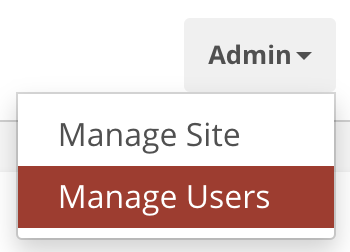
Then find the user by their email address and click through to their user admin page. There you will find the ID:

Publishing Templates
For each template you want to upload:
-
Log in as the templates user.
-
As the templates user, create a project containing the template's source code and make sure it compiles.
-
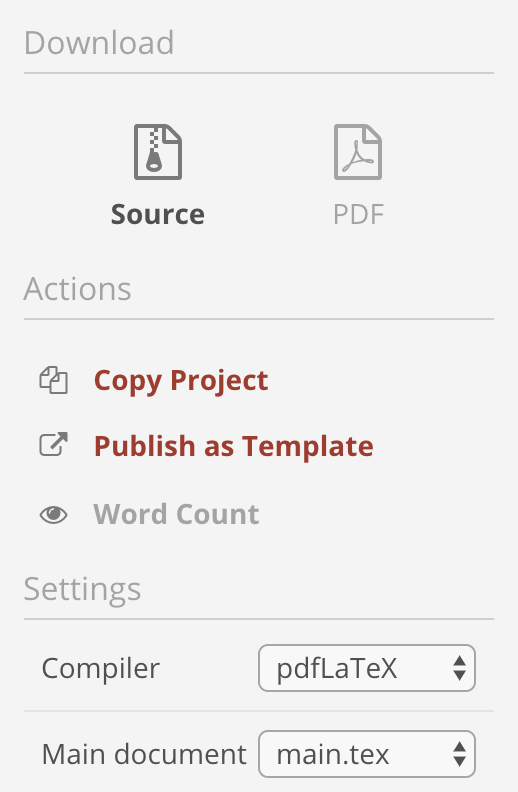
In the editor's left-hand menu, choose Publish as Template:
Unpublishing Templates
In order to unpublish a template you need to republish the template as described in the section above, then click the Unpublish button once the confirmation popup is displayed:
- Log in as the templates user.
- Open the previously existing project containing the template's source code.
- In the editor's left-hand menu, choose Publish as Template:.
- Once the confirmation popup is displayed, click Unpublish.
The template should have been removed from the templates list.
Configuring Links to Templates
Templates on index page
On the templates index page, /templates, templates are nested under folders which the user puts the projects in, e.g. Journals, Reports etc. To see all templates add /all to the URL /templates/all, which can also be used as the default URL if you do not wish to use the folder for grouping.
You can also add a link to /templates adding an entry to OVERLEAF_HEADER_EXTRAS , as described in the Header Navigation Links Documentation.
Template links on project list page
When a user creates a new project they can be shown as linked to templates. These are set via the OVERLEAF_NEW_PROJECT_TEMPLATE_LINKS variable:
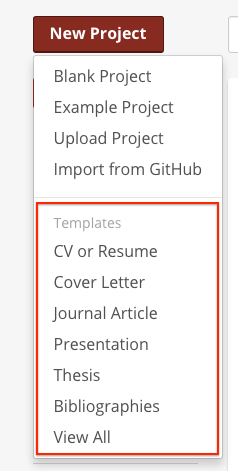
OVERLEAF_NEW_PROJECT_TEMPLATE_LINKS='[ {"name":"All Templates","url":"/templates/all"}, {"name":"All Categories","url":"/templates"}, {"name":"reports","url":"/templates/reports"}, {"name":"External","url":"https://somewhere.com/templates/reports"} ]'